Browser hijacking or 'pop-up phishing' involves fraudulent messages that unexpectedly pop up for users when they are surfing the web. In many cases, cyber criminals infect otherwise legitimate websites with malicious code that causes these messages to appear when people visit them.
The content of these messages themselves is what makes them so effective. Often, they present the unsuspecting website visitor with some kind of fraudulent warning from a well-known reputable company, typically about the security of their computer. Then they either prompt the visitor to download some tool to fix the problem, such as an antivirus application which turns out to be malware itself, or to call a fraudulent phone number for "support." The abnormal behavior of the message itself and the inability to close or navigate away from them, makes the fraudulent messages appear to be somewhat credible.
This guide will demonstrate how to rid yourself of the worrisome pop-up message, and then perform some simple operations to get Apple Safari back to normal.
Tools You'll Need:
A paperclip
iPhone charging cable
Access to a computer with iTunes installed
Any other non-consumable tools needed
Comment out tools section if no tools are necessary
-->
Supplies You'll Need:
Zip ties
Any other consumable supplies
Comment out supplies section if no supplies are necessary
-->
Before You Begin:
You must have access to a computer with iTunes installed.
You must have that thing for the other thing so you can do the thing.
Each individual prereq should have its own box like this. Not all will contain multiple links.
Comment out prerequisites section if no prereqs are necessary
-->
2. Force Quit Safari
Select the Apple menu, then Force Quit.
Highlight Safari in the list, and select Force Quit.
You'll be prompted if you're sure, select Force Quit.
3. Check Homepage Settings
Your web browser's homepage settings dictate the websites that are loaded when it is opened up.
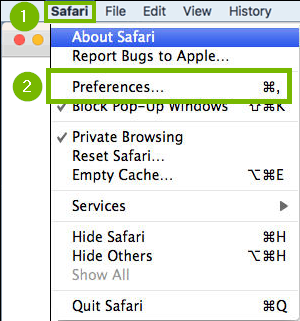
From the (1) Safari menu, choose (2) Preferences.
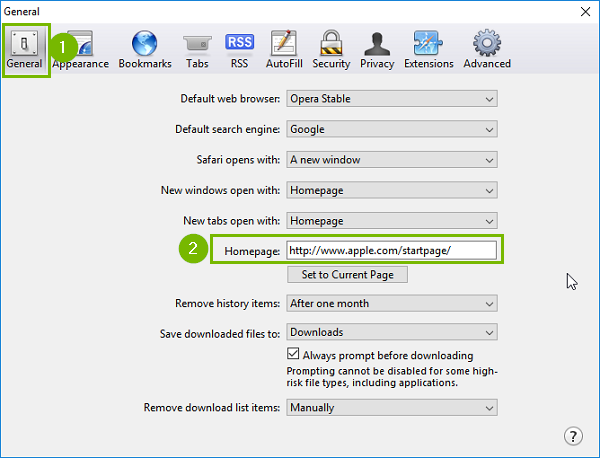
Click on (1) General. Type in the (2) Homepage address that you want.
4. Remove Extensions
Extensions provide extra features to Safari. Sometimes, these Extensions are not coded well, break after an update, or they change the way Safari works in a malicious way to show you advertisements.
Disabling or removing unneeded or unwanted Extensions can help resolve these problems.
Some pop-ups are created from extensions and add-ons installed on your browser. We will be going over steps to remove the extension.
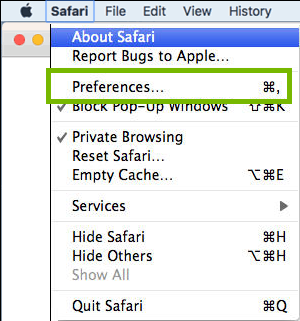
From the Safari menu, choose Preferences.
The following steps can be repeated to remove multiple browser extensions.
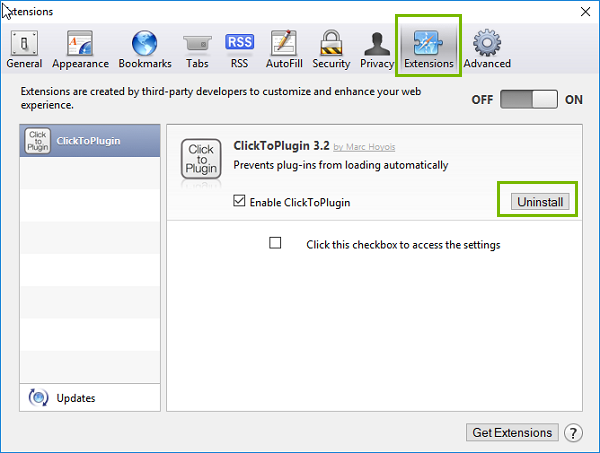
Click the Extensions tab. Click on Uninstall for any extensions you want to remove.
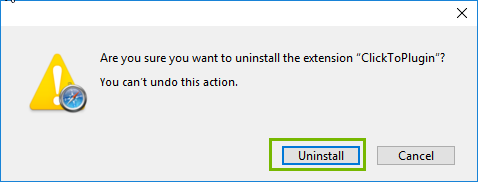
You will get a confirmation window. Click on Uninstall to confirm removal.
If a new tab opens up, you can close it by hitting the X.
Extensions are now gone, you may have to restart your browser for it to take effect. If you removed a malicious extension, it might have changed your homepage.
5. Clear Browser History
Open Safari.
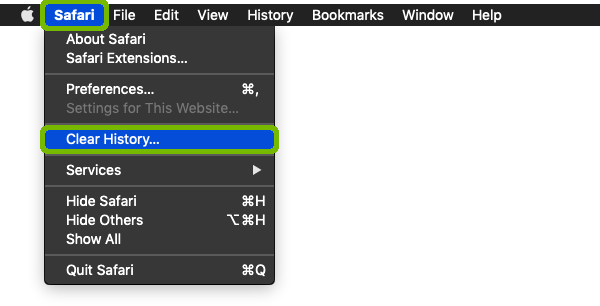
Select the Safari menu, then select Clear History.
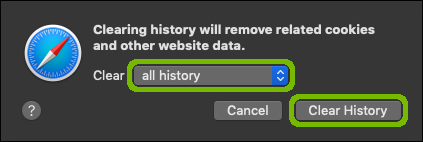
Select Clear all history, then select Clear History.
6. Test Search Page
Open your browser and take note if it shows your normal home page or search page.
Test your ability to search the web like you normally would.
7. What Are PUPs
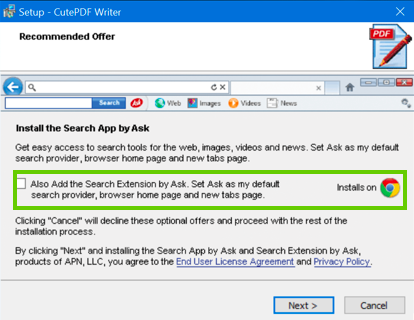
Potentially unwanted programs, or "PUPs", often arrive bundled with your computer or can tag along with another software program you meant to install. Most times, they are snuck into the EULA as a "Recommended Offer" that many of us are so accustomed to just click right through. Lots of these types of programs end up being junkware that your computer will not benefit from. Unfortunately, some of these programs can add unwanted browser toolbars or extensions that can clutter your browser, track your web browsing, show additional advertisements, or change your search page and other related settings. Usually, unless these types of programs are removed, they will continue causing issues with your web browsing experience.
Remove PUPs via Windows 10 Settings
Click Start (1), then click Settings (2).
Next, Select Apps.
Scroll down and locate the app you wish to remove, and click on Uninstall.
Carefully read any prompts in case there are special instructions. Proceed until the application is removed.
Some applications may require that you reboot.
Remove PUPs via the Control Panel
On your keyboard push and release the Windows Key and R at the same time.
You will see a Run window open up. Type in appwiz.cpl then click on OK.
Locate a program you wish to remove within the list, click once on it to highlight it, then click on Uninstall.
Carefully read any prompts in case there are special instructions. Proceed until the application is removed.
Some applications may require that your computer be restarted to complete the uninstallation.
Test your browser after removing any PUPs from your machine. This may require you to restart your browser or your computer beforehand depending on what was removed.
8. Remove App
Removing an app may also remove all data for that app. Make sure you have any information you need backed up before removing an app for your Mac.
To Remove an App Installed from the App Store
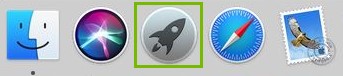
Open the Launchpad from the dock.
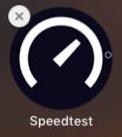
Click and hold on an icon until all icons start to jiggle.
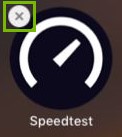
Click the "x" on the top left of the icon you want to remove.
Click Delete to confirm removal.
To Remove All Other Apps
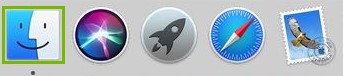
Open the Finder from the dock.
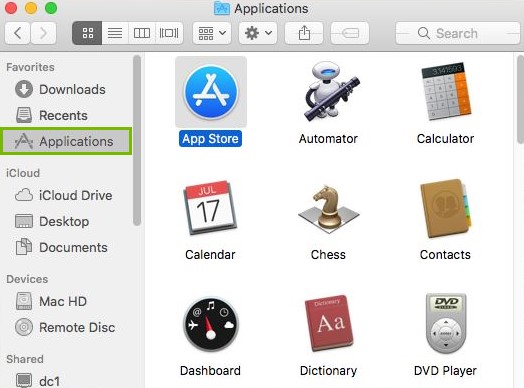
Click on Applications on the left.
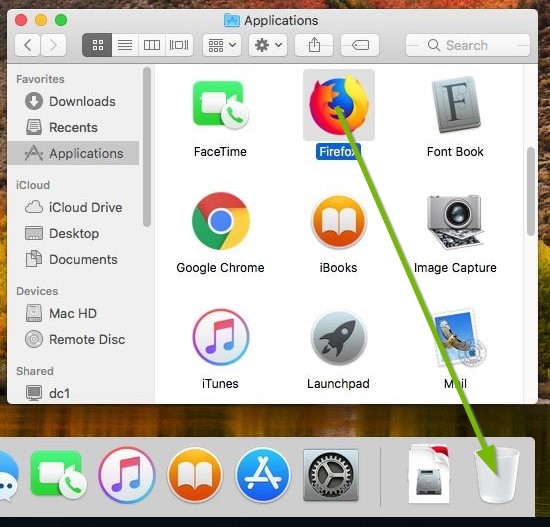
Drag the app you wish to remove to the trash can.
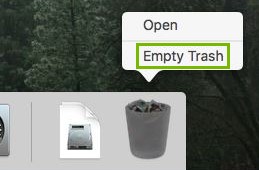
Right click on the trashcan and click Empty Trash.
9. Restart
From the menu bar across the top of the screen, select the Apple menu (1), then select Restart... (2).
Any unsaved work will be lost.
10. Test Search Page
Open your browser and take note if it shows your normal home page or search page.
On a Desktop or Laptop, look for one of these icons:
On a Smartphone or Tablet, look for one of these icons:
Make sure the page loads properly, and try following a few of the links from the page.
11. Continued Browser Hijack Issues
Unfortunately, your browser issue cannot be resolved via basic troubleshooting steps. Your machine will require hands-on service to determine the root cause of your issues.
12. What's next?
Remove Hidden Spyware In Minutes For Free
Detect and remove spyware, keyloggers, tracking cookies, and other
threats that slow down your PC or steal your data.
65+ Million Downloads
Spyware scanner with AI-powered detection engine + database
.png)