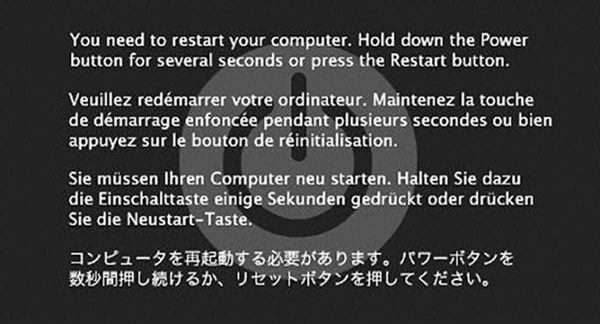
If you've ever experienced a black and grey kernel panic screen, it can be very abrupt and frustrating. When an app has a problem, you may simply see a spinning wheel cursor, but when multiple apps fail - or the operating system fails itself - you may experience a kernel panic.
This guide will take you through some steps that can help you overcome an unexpected kernel panic error. The steps are listed in order, so start with the first one, see if that helps, and then continue with the next one if it doesn't.
What You'll Need:
No extra tools or supplies are needed.
-->
Before You Begin:
Extra instructions.
hyperlink
-->
2. Force Restart the Mac
If your Mac computer is showing a Kernel Panic screen, is frozen or not responding, you may need to forcefully restart it.
This works nearly the same on any modern Mac, with the difference being whether the Mac has a physical power button on the back of the machine or if it is a MacBook, where the power button is a part of or slightly above the keyboard.
Hold down the Power button on the Mac until it shuts down completely, this may take 5-10 seconds or so.
Wait a few seconds then press the Power button again to boot the Mac.
3. Check for Updates
Click the Apple menu, then click onApp Store.
Select Updates on the bar at the top.
Any pending updates for your Mac will be listed here. Select Update All to apply these updates.
MacBook, MacBook Pro, and MacBook Air must have the power adapter plugged in to automatically download updates.
4. Check Startup Programs
Click on the Apple Menu, then click System Preferences.
Choose Users & Groups.
Choose Login Items at the top. Then, choose your username on the left. Then, click the Lock icon at the bottom. You may need to type in your Mac password to unlock this screen.
Look through the list on the right. If you see an item you don't recognize, or an item you don't use frequently, highlight it by clicking its name, then click the Remove – button below to remove it.
5. Reinstall macOS
When you've exhausted all options in trying to fix a major issue with your Mac computer, you may be left with having to reinstall macOS to bring it to its original state it was in out of the box.
Reinstalling macOS will remove all customization, files, and programs on your computer. Make sure you have a recent backup before proceeding.
Immediately after your Mac restarts (some Mac computers play a startup sound), press and hold the command ⌘ and R keys until the Apple logo appears, then release the keys.
Highlight Reinstall macOS, then select Continue.
macOS setup will begin. Select Continue.
Select Agree to accept the Terms of Service.
Select Agree to confirm you agree with Terms of Service.
Choose a Drive to install macOS on and select Install.
Install will now start and this will take some time. The computer will reboot during this process.
If the Issue Persists
Remove Hidden Spyware In Minutes For Free
Detect and remove spyware, keyloggers, tracking cookies, and other
threats that slow down your PC or steal your data.
65+ Million Downloads
Spyware scanner with AI-powered detection engine + database
.png)