How to Fix 'HDCP Unauthorised' Error on a Roku Ultra
Authored by: Support.com Tech Pro Team
1. Introduction
If your Roku device detects that the HDMI connection with your TV or audio/video receiver (AVR) does not support the copy and content protection technology known as HDCP, it may display one of two types of messages on the screen:
An "HDCP Error Detected" message with error code 020
Or an "HDCP Unauthorised. Content Disabled." message on a purple screen.
This guide will provide some troubleshooting steps that may resolve this issue.
2. Introduction
High-bandwidth Digital Content Protection (HDCP) is a digital copy protection standard used by the movie and TV industry to prevent copying of digital audio & video content as it travels across connections such as High-Definition Multimedia Interface (HDMI), DisplayPort (DP) or Digital Visual Interface (DVI). It is used on connections for digital devices like TVs, audio/video receivers (AVR), Blu-ray players, gaming consoles, cable boxes or streaming media players such as Roku, Fire TV or Apple TV.
For 4K or 4K HDR content, the connections (cables) used need to be compliant with the newer version of the copy protection technology, known as HDCP 2.2.
3. Check HDMI Cable
Check the HDMI cable ends and device ports and remove any foreign objects.
Check for cable damage. If it is damaged then it should be replaced.
Securely and firmly reconnect the HDMI cable between your devices.
Try plugging the HDMI cable ends into a different port on each device if possible.
Try using a different high-speed HDMI cable. Some cables are higher quality than others, a low-quality cable may impact your sound and video signal.
HDMI Cable
HDMI Port
4. Restart Device
To restart your device via power cycle:
If your device has buttons or a remote control, press the power button to turn it off.
Unplug it from the power outlet and wait for 10 seconds.
Plug it back into the power outlet, then turn it back on from the power button if it has on.
5. Introduction
Resolution is the measure of how much detail you can see on the screen of a display device such as a TV or computer monitor. Typical resolutions on display devices today are 720p, 1080p and 4K Ultra HD (4K UHD), with some 4K UHD display devices also supporting higher frame rates and more color information with High Dynamic Range (HDR). The higher the resolution, the sharper and more realistic the image appears.
When playing video, what you see is a quick succession of still images, or frames, which creates the illusion of motion or animation. The number of frames displayed each second is known as the frame rate and is measured in frames per second (fps), or frequency (Hz). The higher the frame rate, the smoother the motion appears.
6. Set Display Type
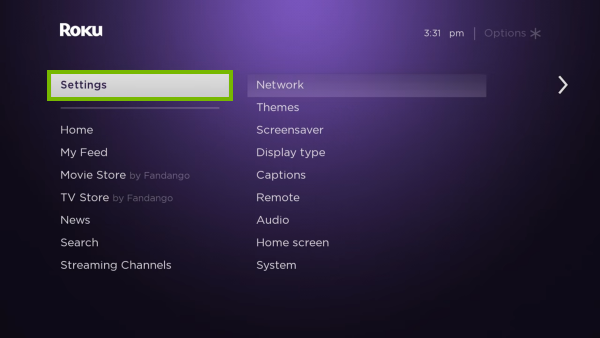
Press the Home button on your Roku remote.
This will bring up the Home screen.
Go up or down and highlight Settings.
Go right then up or down and highlight Display type.
Go right to see the display type selection screen. In most cases the Auto detect option will set the right display type for you. Highlight any of the listed display types that you prefer and press OK then wait for the Roku device to analyze the HDMI connection.
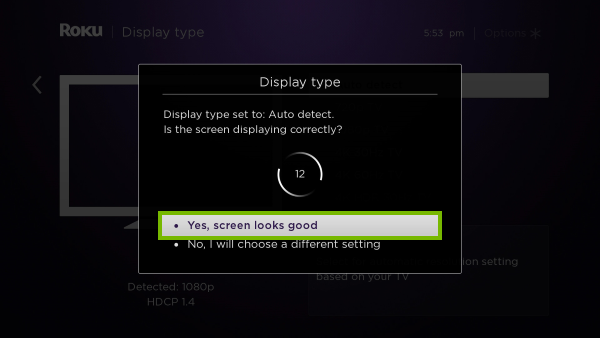
If the Roku device detects a supported display type select OK, go to automatic.
You will be asked if the screen is displaying correctly. Either select Yes, screen looks good or wait for the 15 countdown to pass.
If the Roku device is unable to correctly detect any of your displays features, it will show a red X for that item. You can choose to:
Force output to 4K UHD HDR if you believe the display type is supported.
Cancel and choose another display type.
Re-establish the HDMI connection and select I've changed something, retry.
If you do not see a picture after choosing Force output to 4K UHD HDR, your display device does not support the resolution or frame rate. Wait 15 seconds and it will return to the previous display type. When the picture returns, choose another display type.
7. Bypass HDMI Device
If your Roku device is connected to your display through an audio/video receiver (AVR) or sound bar:
Or if you're using an HDMI hub or splitter:
Then connect the Roku device directly to the display, at least for troubleshooting purposes.
8. What's next?
Remove Hidden Spyware In Minutes For Free
Detect and remove spyware, keyloggers, tracking cookies, and other
threats that slow down your PC or steal your data.
65+ Million Downloads
Spyware scanner with AI-powered detection engine + database
.png)