How to Fix Performance iPhone, iPad, or iPod Touch
Authored by: Support.com Tech Pro Team
1. Introduction
If you're still using an iPhone that's two or more generations old, chances are it isn't as fast as it used to be.
All computing devices are prone to slowing down over time, as their storage space fills up and extra software is added. However, it's possible that it just feels slower than it used to because you've got used to what initially seemed like amazingly snappy performance, or you may be comparing your phone to your friends' newer, faster phones.
In any case, some of these steps may help speed things up again. Results will vary depending on how old your iPhone is, its hardware capabilities, etc.
Make sure to test your iPhone after performing each one of these steps. Any one of these steps may individually resolve your performance issue altogether. If you feel like a particular step has resolved your issue, feel free to skip to the end of this guide.
2. Update
To check and see if updates are available for your iOS device:
Select Settings.
Select General.
Select Software Update.
Your iOS device will perform a search for available iOS updates.
If no update is available, it will display your current version of iOS and inform you that your software is up to date.
If an update is available, it will be displayed.
Select Download and Install to begin the update process.
If prompted, enter your passcode to proceed.
3. Restart
To restart your device:
Restart your iPhone X
Press and hold the Side button and either volume button until the slider appears.
Drag the slider to turn your iPhone X completely off.
After your iPhone X turns off, press and hold the Side button again until you see the Apple logo.
Restart your iPhone 8 or earlier, iPad, or iPod touch
Press and hold the Top (or Side) button until the slider appears.
Drag the slider to turn your device completely off.
After the device turns off, press and hold the Top (or Side) button again until you see the Apple logo.
With iOS 11 or later, you can also turn off your device by going to Settings, then General, then Shut Down.
4. Check Storage and Optimize
Select Settings.
Select General.
Tap on [Device] Storage.
The total amount of storage used will be shown near the top.
Below this, a Recommendations section will be displayed with options tailored to your individual device's storage situation to free up additional space.
There will also be a list of individual apps (sorted by total amount of storage used) that will have options to help reduce the amount of storage they are consuming on your device. You can personally decide if removing/reducing storage for those apps is right for you.
5. Clear Safari Cookies and Data
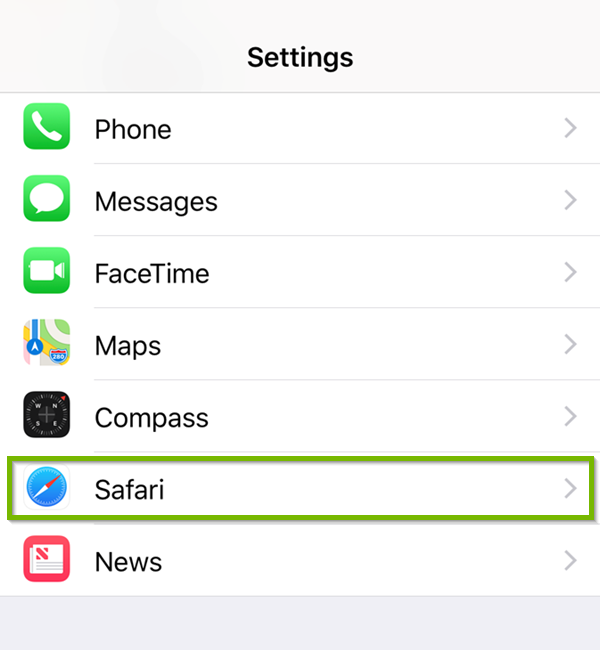
Select Settings.
Select Safari.
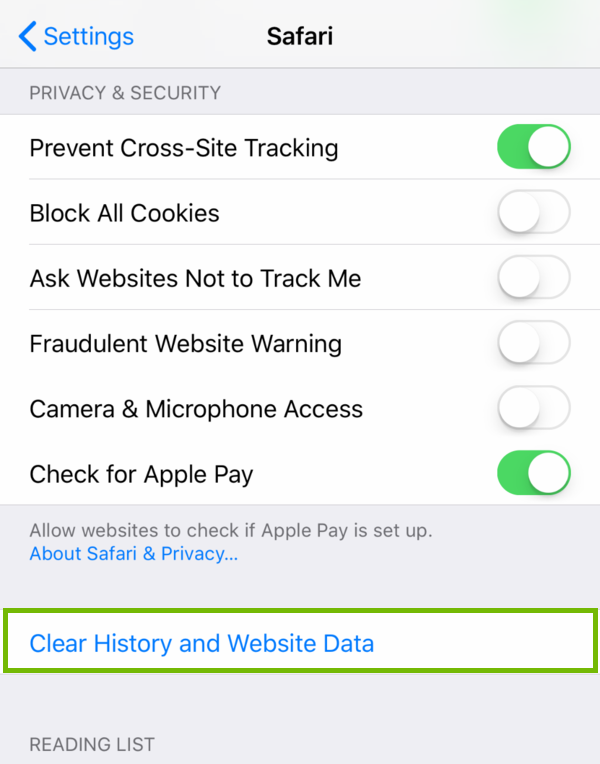
Select Clear History and Website Data.
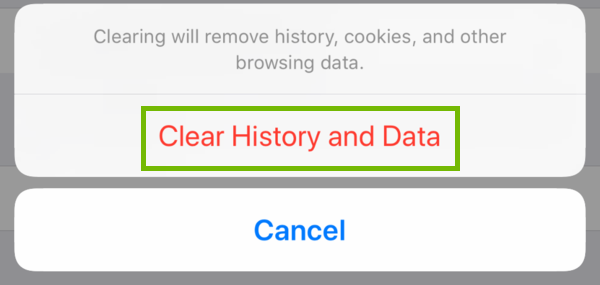
Select Clear History and Data on the confirmation screen.
This action may make browsing the web less convenient for a while. Safari will have forgotten the URLs you've been visiting so it will not suggest them as you type, unless they had been previously bookmarked. These will build back up over time.
6. Disable Background Processes
To turn off Automatic Downloads:
Select Settings.
Select iTunes & App Store.
Turn off ALL automatic downloads.
To turn off Background App Refresh:
Select Settings.
Select General.
Select Background App Refresh.
Select Background App Refresh again.
Background App Refresh can be completely turned off.
These processes do not need to be going on in the background and may gain you a noticeable increase in performance if you stop them.
7. Disable Visual Effects
Select Settings.
Select General.
Select Accessibility.
Select Increase Contrast.
Turn Reduce Transparency ON.
Select Accessibility.
Select Reduce Motion.
Turn Reduce Motion ON.
These options turn off the parallax effect of icons and alerts and reduces see-through background effects which can also slow things down on an older iPhone.
8. Introduction
Resetting your iPhone's settings can remove conflicting or problematic preferences you may have set or saved when your iPhone was running on an older version of iOS that has since been updated.
This will clear all iOS and individual app preferences, and you'll have to re-enter any specific settings you had previously set up on an app-by-app basis, but you will not lose any content in any of your apps or any of your personal data.
9. Reset Your Settings
The following steps will reset your iOS preferences to defaults. Your applications and data will not be removed.
Select Settings.
Select General.
Select Reset.
Select Reset All Settings.
Enter your iPhone's passcode (if prompted), and on the following confirmation screen, select Reset All Settings.
10. Introduction
As an absolute last resort, a factory reset can be performed on your iPhone. This resets everything on the device as if it just came out of the box for the first time. It can be a great way to determine if performance improves at all without any of your personal information or apps being present on the device any longer.
This will remove all data, music, photos, settings, apps, literally everything from this device. The entire process is done from the iPhone without the need for a computer. Be absolutely sure that you have backed up anything you do not wish to lose permanently before beginning this process.
11. Factory Reset
Select Settings.
Select General.
Select Reset.
Select Erase All Content and Settings, and enter your iPhone's passcode (if prompted).
You will receive a confirmation prompt offering to Backup Then Erase or Erase Now. If you would like to back up your device's information before erasing, select Backup Then Erase. Otherwise, select Erase Now.
Your iPhone will now wipe all data and reset back to factory defaults. When completed, you will be presented with the Welcome screen you saw when you took your iPhone out of the box for the first time.
12. What's next?
13. What's next?
14. What's next?
Remove Hidden Spyware In Minutes For Free
Detect and remove spyware, keyloggers, tracking cookies, and other
threats that slow down your PC or steal your data.
65+ Million Downloads
Spyware scanner with AI-powered detection engine + database
.png)