Some Roku devices include a USB port to which you can connect an external USB drive for playing locally stored photo, audio, and video files. If you have a Roku TV, then you can also use a USB drive to pause live television.
This guide will help you determine why your Roku device cannot detect your USB drive.
2. USB Drive Filesystem
USB drives can be formatted with different file systems. Roku devices support USB drives that are formatted with the FAT16, FAT32, NTFS, EXT2, EXT3, and HFS+ file systems. Many new USB drives are pre-formatted with the exFAT file system, which is not supported.
If you don’t know which file system is used, insert the USB drive into an available USB port on your computer. When the drive appears on the desktop, right click on the icon with your mouse and select Properties on your PC, or Get info on your Mac.
If you are using the USB drive to pause live television on a Roku TV, then the filesystem format does not matter as you will be prompted to reformat the drive.
3. Check USB Filesystem
Insert the USB drive into your computers USB port.
Launch File Explorer.
Look for your USB drive in the left pane of File Explorer under This PC.
Right-click the USB drive the select Properties.
On the Properties popup look for the File system detail.
4. USB Drive Low Power
There are many types of USB drives, from large external hard drives to smaller thumb drives. It is important to note that different drives have different power requirements – for example, some USB hard drives have an external power adapter that must be connected to a power outlet.
The most common reason the Roku device may fail to detect the USB drive is that USB drive requires more power than the Roku device can provide.
You may also see this message on your Roku screen:
5. Use with Power Adapter
Plug in the powercable into the external USB drive (middle).
Plug in the included power adapter into a power outlet.
Plug in one end of the USB cable into the external USB drive.
Plug in the other end of the USB cable into the other device, such as a computer, media player, gaming console or television.
6. Additional Information
To better assist you, please answer this question.
7. Bypass USB Hub
Remove the USB hub and connect the USB drive directly to your device.
8. What's next?
9. What's next?
10. Additional Information
To better assist you, please answer this question.
11. Use Powered USB Hub
Some powered USB hubs require a specific “order of operation†to work correctly. If after following the instructions provided with your USB hub, the USB drive is still not recognized, we suggest trying the following methods:
Method 1:
Connect the USB hub toa USB port on your device, such as a computer, media player, gaming console or television.
Plug the USB hubs power adapter into a power outlet.
Connect the USB drive to a USB port on the hub.
Method 2:
Connect the USB drive to a USB port on the hub.
Plug the USB hubs power adapter into a power outlet and wait 10 seconds.
Connect the USB hub toa USB port on your device, such as a computer, media player, gaming console or television.
12. What's next?
13. Low Power
If you have a non-powered USB hub connected to a USB port on your device, such as a computer, media player, gaming console or television, and your USB drive doesn't get enough power to function, then you can try the following:
Reduce the number of devices connected to the USB hub.
Remove the USB hub and connect the USB drive directly to your device.
Replace the non-powered USB hub with a powered USB hub.
14. What's next?
15. Format USB FAT32
Any and all data on the USB drive will be destroyed during this process. Make sure the drive is blank, or copy the data to a safe place before proceeding.
Insert a USB disk into your USB port.
Open Windows Explorer.
In the right-hand pane, locate your USB disk under This PC.
Using your right mouse button, right click on your USB disk. A menu will open up.
Select Format...
For File system, select FAT32. For Volume label, enter a name you want.
Select Start.
A message will open, reminding you that any and all data will be lost. If you are sure this is okay, select OK.
Once the disk is done formatting, a message will open to tell you it is complete. Select OK.
16. Check USB Filesystem
Insert the USB drive into your Mac computers USB port.
Launch Finder.
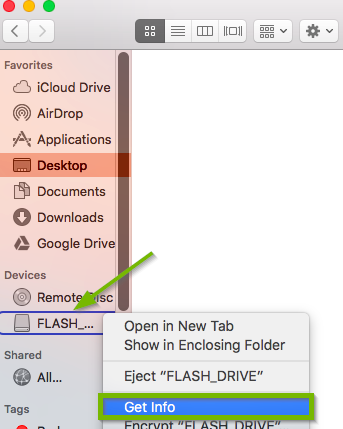
Look for the USB drive in the left pane of Finder, right-click or Control-click it then select Get Info.
On the Info popup, look for the Format detail. This is the USB drives file system.
17. Format USB FAT32
Any and all data on the USB drive will be destroyed during this process. Make sure the drive is blank, or copy the data to a safe place before proceeding.
Insert a USB disk into your USB port.
macOS will recognize the disk and show its icon on the desktop.
Launch Disk Utility.
Select Search in the top-right corner.
type in "Disk Utility". Select the Disk Utility search result.
Select your USB Disk from the list on the left.
Select Erase at the top.
Give the disk a Name, and select MS-DOS (FAT) for Format.
Select Erase.
A progress bar will open. Wait will the disk is formatted.
Once complete, select Done.
Quit Disk Utility. Select the Disk Utility menu at the top, then Quit Disk Utility.
Remove Hidden Spyware In Minutes For Free
Detect and remove spyware, keyloggers, tracking cookies, and other
threats that slow down your PC or steal your data.
65+ Million Downloads
Spyware scanner with AI-powered detection engine + database
.png)