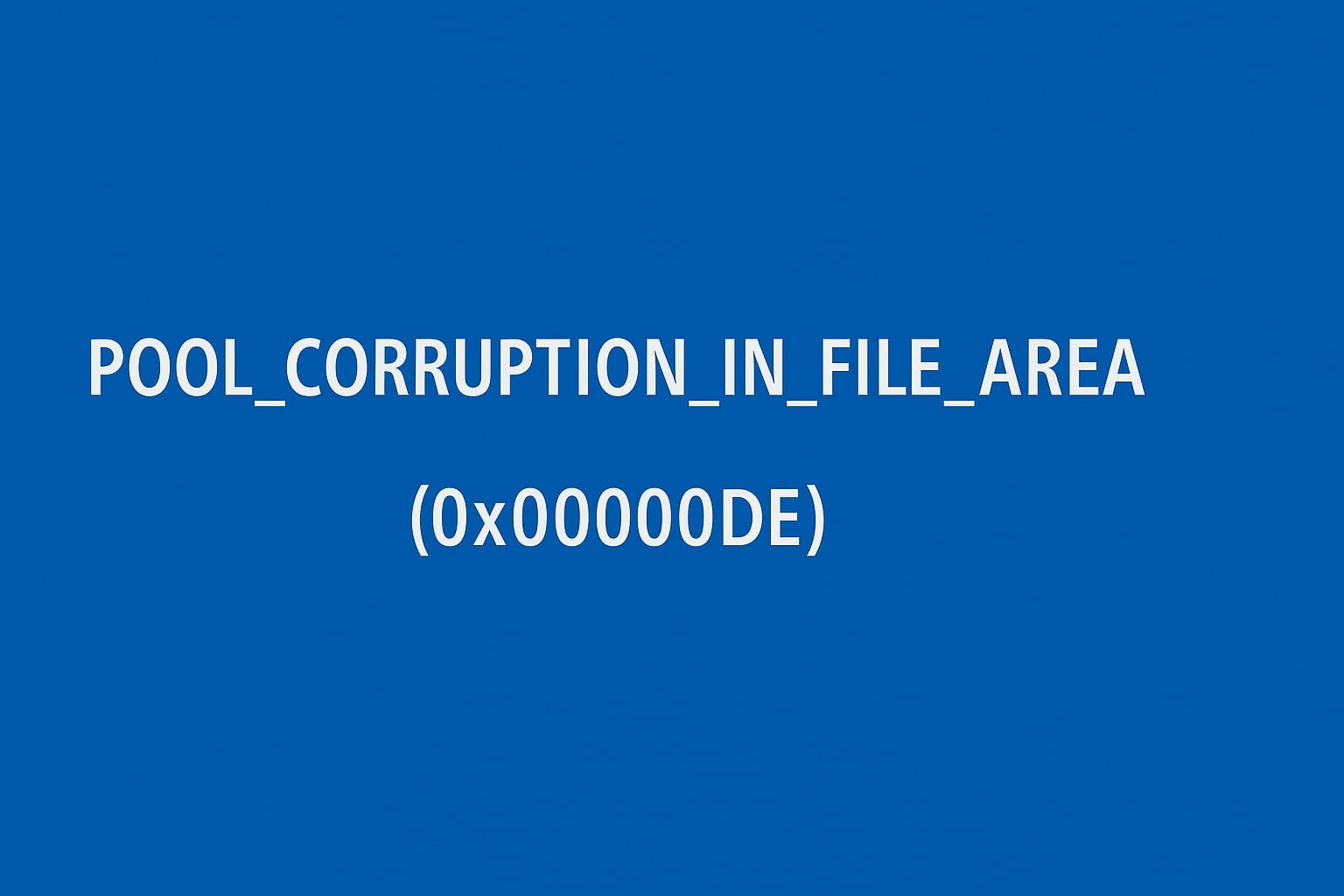
"POOL_CORRUPTION_IN_FILE_AREA (0x000000DE) BSOD: What It Means & How to Fix It for Good"
What Is POOL_CORRUPTION_IN_FILE_AREA (0x000000DE)? This BSOD error indicates that a driver has corrupted pool memory used to store data temporarily before it’s written to disk.
The dreaded Blue Screen of Death (BSOD) can stop your system in its tracks, and one particularly severe stop code is 0x000000DE, also labeled as POOL_CORRUPTION_IN_FILE_AREA. If you've encountered this error, this guide provides everything you need to understand what’s happening, why it happens, and how to resolve it.
What Is POOL_CORRUPTION_IN_FILE_AREA (0x000000DE)?
This BSOD error indicates that a driver has corrupted pool memory used to store data temporarily before it’s written to disk. The memory pool is a critical system component, and any corruption here—particularly by kernel-mode drivers—can lead to serious crashes.
Common Causes of the Error
1. Faulty or Outdated Drivers
Most commonly, a buggy or outdated driver corrupts memory allocated for disk-bound pages, triggering the BSOD.
2. Disk I/O Conflicts
Corruption can occur during intense disk operations, especially when drivers mismanage data paging.
3. Bad or Failing RAM
Corrupt or mismatched memory modules can alter or damage the contents of the memory pool.
4. Overclocking
Overclocking memory or CPU beyond safe limits may lead to instability and pool memory corruption.
5. Problematic System Updates
New patches or kernel-level software may inadvertently interfere with system memory management.
6. Malware or Rootkits
Some malware manipulates or damages memory allocation structures, resulting in corruption of pool memory.
How to Fix 0x000000DE: Step-by-Step Guide
1. Boot Into Safe Mode
This limits active drivers and helps isolate the issue.
Open the Start Menu, click Power, hold Shift, and click Restart.
Look for recently updated drivers under Storage Controllers, Display Adapters, etc.
Right-click the driver > Properties > Driver tab > choose Roll Back Driver or Update Driver.
3. Test for Memory Issues
Press Win + R, type mdsched.exe, hit Enter.
Choose Restart now and check for problems.
The system will reboot and scan your RAM for issues.
4. Run CHKDSK to Scan the Disk
Open Command Prompt as Administrator.
Enter: bash CopyEdit chkdsk C: /f /r
Confirm restart if prompted. The scan will attempt to repair disk errors.
5. Perform a Clean Boot
Press Win + R, type msconfig, hit Enter.
Under Services, check Hide all Microsoft services, then click Disable all.
Go to Startup tab > open Task Manager > disable all startup items.
Restart your computer.
This isolates third-party software causing the crash.
6. Run System File Checker (SFC) and DISM
Open Command Prompt as Administrator, then run: bash CopyEdit sfc /scannow
After that completes, run: swift CopyEdit DISM /Online /Cleanup-Image /RestoreHealth
These tools repair corrupted system files that may affect pool memory.
7. Reset Overclock Settings
Restart into BIOS/UEFI settings (usually via pressing Delete or F2 during startup).
Restore default settings or load optimized defaults.
Save and exit.
8. Scan for Malware
Open Windows Security > Virus & Threat Protection > Scan Options.
Perform a Full Scan or use a dedicated anti-malware tool.
9. System Restore or Reset
If the error started recently:
Go to Settings > System > Recovery.
Use System Restore to revert to a working state.
If necessary, select Reset this PC, keeping your personal files intact.
Advanced Debugging (For Developers and IT Professionals)
Analyze crash dumps using WinDbg.
Open C:\Windows\MEMORY.DMP and run: diff CopyEdit !analyze -v
Investigate any flagged drivers or modules directly involved in pool corruption.
Prevention Tips
Keep all drivers and Windows components up to date.
Avoid installing untrusted or unofficial drivers.
Perform regular malware scans.
Avoid unstable overclocking.
Periodically run memory and disk diagnostics.
Final Thoughts
The POOL_CORRUPTION_IN_FILE_AREA (0x000000DE) BSOD often indicates serious driver or memory-level issues but is resolvable with methodical troubleshooting. Updating drivers, scanning for hardware faults, and maintaining clean system practices are essential for long-term stability.
Support.Com Can Help!
If you’re still having trouble, consider reaching out to Support.Com for a personalized solution to all technical support issues.
Remove Hidden Spyware In Minutes For Free
Detect and remove spyware, keyloggers, tracking cookies, and other
threats that slow down your PC or steal your data.
65+ Million Downloads
Spyware scanner with AI-powered detection engine + database
.png)